Steam
Starting with version 1.2.0 of DOTS Survivors, the shipped Steam version of the game includes Steam integration for Achievements, Stats, and Cloud Saves.
This integration was done by using version 2025.161.0 of Steamworks.NET which can be downloaded for free from the releases page on their GitHub.
I decided not to force Steam integration into the Asset Store product, so if you wish to have Steam integration for your project, you will need to follow the steps below.
Initial Setup
- Install Steamworks.NET
- The Steamworks.NET documentation contains a few options for installation, so determine which works best for you.
- For DOTS Survivors, I decided to download and install all files from the
.unitypackagefor version 2025.161.0
- Locate the
steam_appid.txtfile at the root of your project directory. Modify the contents of this file to only contain the numerical Steam app ID of your game.- If you want to make a build of your game, you will need to copy this
steam_appid.txtfile into the root directory of your game so the executable can connect to Steam.
- If you want to make a build of your game, you will need to copy this
- Restart Unity so the app ID file can be detected.
- Follow the Getting Started Guide if you want to create your own custom setup.
- If you are using a custom Assembly Definition, add a reference to
com.rlabrecque.steamworks.netin your Assembly Definition Asset to reference the Steamworks.NET API from your game code.- The DOTS Survivors Assembly Definition is located at
Assets\DOTSSurvivors\Scripts\DOTSSurvivors.asmdef
- The DOTS Survivors Assembly Definition is located at
Note
If you wish to use the Steam integrations developed for DOTS Survivors, extract the .unitypackage file located at: Assets\DOTSSurvivors\Integrations\SteamIntegration.unitypackage
IMPORTANT: doing this will overwrite the following files:
- ResultsPanelUIController.cs
- PersistentDataManager.cs
- TitleScreenUIController.cs
Be sure you have a backup of these files if you made any modifications to them.
Once imported, locate the SteamController prefab at Assets\DOTSSurvivors\Prefabs\Steam and add it to the root of the TitleScene. This has a SteamManager script that comes from the Steamworks.NET .unitypackage which initializes the connection to Steam. The SteamController prefab also has a custom AchivementManager singleton MonoBehaviour to track Steam achievements and stats.
Achievements
The Steam integration of DOTS Survivors allows the game to have Steam achievements. To integrate these into your project, visit the Steamworks Admin section of your app in the Steam backend. Navigate to Stats & Achivements > Achievements.
Define an API Name, Display name, and description of all the achievements you want to have in your game. You can also create and upload icons for each achievement, though I did notice that this was a bit buggy, so you first need to save a new achievement, then edit it again before you can upload the icon. If successful the icons will all be shown.
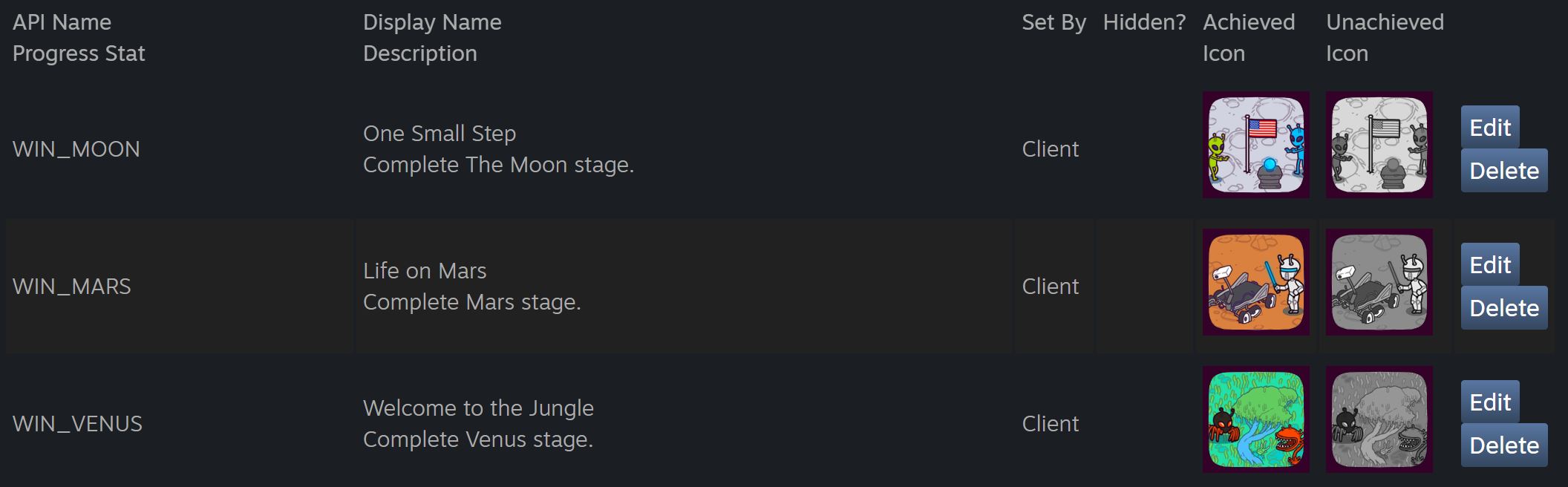
Next, visit the Steam Store Admin section for your app. In the Basic Info tab, scroll down to Supported Features. Enable Steam Achievements. While you are here I would also recommend enabling Steam Cloud and Stats as those options will be detailed later in this document.

Create an Achievement Manager script. The following will detail how I set one up for DOTS Survivors.
AchievmentManager is setup as a MonoBehaviour singleton. It contains an enum to define the Achievement I want to unlock and a string array with the API name of all the achievements defined in the Steamworks Admin. Each enum value lines up with the achievement API name.
There is a public method UnlockAchievement(Achievement achievement) which takes in the Achievement enum type. This method gets called from anywhere in the codebase where certain conditions are met to grant an achievement to the player. First it gets the API name from the string array and uses that to check if the player has already achieved the achievement via the SteamUserStats.GetAchievement method. If it has not, SteamUserStats.SetAchievement is called to mark the achievement as achieved. This however does not sync this data with Steam and the achievement popup will not appear.
To sync with Steam and make the achievement popup appear, SteamUserStats.StoreStats() will need to be called. I've elected to make this call inside of a coroutine, in case the call fails it will try to sync again the next frame.
Many of the achievements are unlocked after a round of the game finishes. As such, I've modified the ResultsPanelUIController.cs script to check for these conditions and grant the appropriate achievements to the user. The PersistentDataManager.cs has also been modified to check for certain conditions when purchasing characters, unlocking weapon evolutions, and defeating aliens to grant achievements. Finally, the TitleScreenUIController.cs has been modified with a single line to grant the player an achievement when they enter the secret stage.
Stats
Steam allows for their own tracking of numerical stats which are separate from leaderboards and save data. These stats can be used to compare progress between friends. However, this game uses Steam stats to track achievement progress, which is shown to the user on applicable achievements that have not yet been earned.
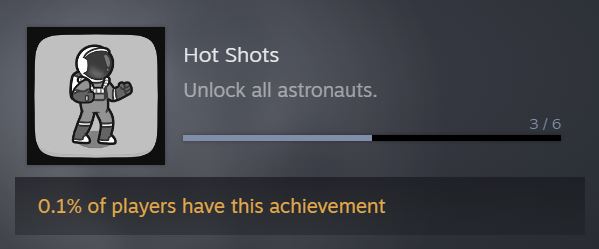
First, you'll need to setup some associated stats in the Steamworks Admin section of your app in the Steam backend. Navigate to Stats & Achivements > Stats. Add a new stat and set an API Name, Min Value, Max Value, Display name and any other options you may want.

Next, navigate to Stats & Achievements > Achievements and edit the achievement you wish to add a progress stat to. Here, select the stat that will be used to indicate progress for that achievement. Set minimum and maximum values for that state. Be sure these line up with your achievement as once that stat value is reached, Steam will automatically unlock the achievement for the player.

In the Steam Store Admin, scroll down to the bottom of the Basic Info tab and enable Stats under Supported Features.
For the client side implementation, I added to my AchievementManager MonoBehaviour singleton to support updating of these stats. Similar to achievements, I created a Stat enum and a string array to store the API Names of all the stats. The values of the Stat enum line up with the indices of the string array.
I have a public method UpdateStat that takes in a Stat enum and an int for the new value (all my stats are int based, but Steam does support float and avgrate stat types). This method simply gets the API Name of the stat and uses that to call SteamUserStats.SetStat to mark the stat as needing to update. Similar to achievements, we also need to call SteamUserStats.StoreStats() to sync with Steam. I invoke the same coroutine as with unlocking achievements.
When testing, be patient as these stats didn't seem to update in the Steam UI as quickly as achievements. It seemed like closing the game build or Unity editor did force the stats to update however.
Cloud Saves
To enable cloud saves, I am utilizing the Steam Auto-Cloud Configuration which requires no code changes and is able to sync the custom save file which I have created and detailed in the Data Persistence documentation. In short, I create a PlayerSave.bin file in Unity's Application.persistentDataPath. Steam detects any changes to this directory and synchronizes the appropriate files.
For detailed instructions on setup and configuration follow the Steamworks documentation on setting up Steam Cloud. Follow this documentation closely as there are some small details which are easy to miss and will make it difficult to test cloud synchronizing of save data (ask me how I know).